

Close Menu
Şevket Ayaksız

    Subscribe to Updates

    Get the latest creative news from FooBar about art, design and business.

    What's Hot

    Google Maps vs Waze: I Put the Two Best Navigation Apps Head-to-Head — and One Clearly Came Out on Top

    Mayıs 1, 2026

    Samsung Electronics Offers Free 32-Inch Odyssey gaming monitor: Eligibility and How to Claim Deal

    Mayıs 1, 2026

    T-Mobile Bundles Free Hulu and Netflix for 5G Users: Eligibility Explained

    Mayıs 1, 2026
    Facebook X (Twitter) Instagram
    • software
    • Gadgets
    Facebook X (Twitter) Instagram
    Şevket AyaksızŞevket Ayaksız
    Subscribe
    • Home
    • Technology

      Google Maps vs Waze: I Put the Two Best Navigation Apps Head-to-Head — and One Clearly Came Out on Top

      Mayıs 1, 2026

      T-Mobile Bundles Free Hulu and Netflix for 5G Users: Eligibility Explained

      Mayıs 1, 2026

      This Portable Mini PC Is the Unexpected Raspberry Pi Alternative You Might Actually Want

      Mayıs 1, 2026

      Samsung warns RAM shortages could worsen beyond 2027

      Mayıs 1, 2026

      Oxford study finds friendly AI chatbots are less accurate

      Mayıs 1, 2026
    • Adobe
    • Microsoft
    • java
    • Oracle
    Şevket Ayaksız
    Anasayfa » Explore Windows 11 Secret God Mode: A Hidden Powerhouse
    Windows

    Explore Windows 11 Secret God Mode: A Hidden Powerhouse

    By ayaksızAğustos 31, 2024Yorum yapılmamış3 Mins Read
    Facebook Twitter Pinterest LinkedIn Tumblr Email
    Share
    Facebook Twitter LinkedIn Pinterest Email

    Windows 11 users have a fascinating hidden feature known as God Mode, which, despite its grandiose name, provides a powerful way to manage and control system settings more efficiently. Although not a new concept, as it has been part of earlier Windows versions, God Mode remains a valuable tool for those looking to streamline their access to various administrative functions.

    The term “God Mode” may evoke thoughts of ultimate control, but in practical terms, it refers to a special folder that aggregates shortcuts to a comprehensive list of settings and tools within the operating system. This feature is particularly useful as Microsoft transitions away from the classic Control Panel, making it more challenging to locate and adjust certain system settings.

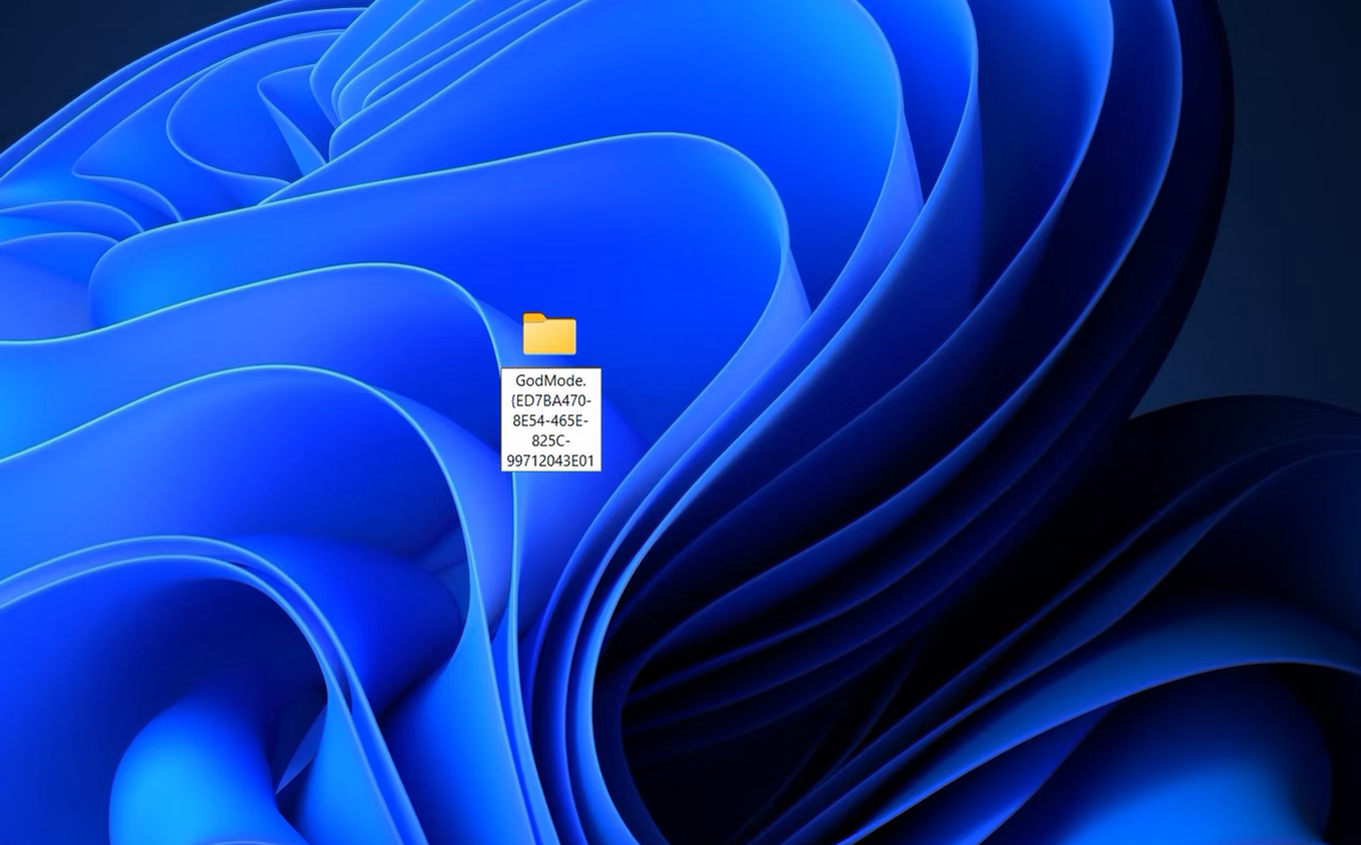
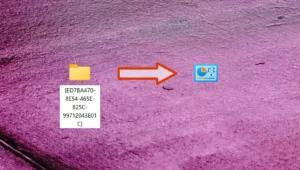
    To enable God Mode, you need to create a new folder on your desktop. Begin by right-clicking on an empty space on your desktop, select “New,” and then “Folder” from the context menu. After the folder is created, right-click on it and select “Rename,” or simply click the folder and press F2. Rename the folder using the following exact name: GodMode.{ED7BA470-8E54-465E-825C-99712043E01C}. Ensure you include the period and curly braces as shown. Once renamed, the folder will change its icon to reflect the Control Panel, signaling that God Mode has been activated.

    Once inside the God Mode folder, you’ll find shortcuts to over 200 different system settings and administrative tools. These include the ability to manage BitLocker drive encryption, with options to suspend or remove protection and backup your recovery key. Network settings can also be adjusted, including connecting to new networks, modifying share settings, and troubleshooting network issues. You can manage energy settings, such as adjusting battery preferences, configuring power button actions, and modifying sleep behavior.

    God Mode also provides access to device management functions, allowing you to add Bluetooth devices, set up USB peripherals, and launch Device Manager. Backup and restore options are available through File History, and you can customize file associations, search options, and accessibility settings. Furthermore, it helps in fixing date and time issues, toggling daylight saving adjustments, and adding clocks for multiple time zones.

    While God Mode may not revolutionize your experience with Windows 11, it significantly simplifies the process of accessing and managing a wide array of system settings. It acts as a centralized hub, offering a more efficient way to handle administrative tasks and settings adjustments, especially useful as the traditional Control Panel continues to be phased out.

    Post Views: 261
    Share. Facebook Twitter Pinterest LinkedIn Tumblr Email
    ayaksız
    • Website

    Related Posts

    Windows 11 April update breaks some third-party backup apps

    Mayıs 1, 2026

    Windows 11 fixes two major design complaints, including taskbar limits

    Nisan 8, 2026

    Windows 11 finally overtakes as the dominant PC OS

    Nisan 8, 2026
    Add A Comment

    Comments are closed.

    Editors Picks
    8.5

    Apple Planning Big Mac Redesign and Half-Sized Old Mac

    Ocak 5, 2021

    Autonomous Driving Startup Attracts Chinese Investor

    Ocak 5, 2021

    Onboard Cameras Allow Disabled Quadcopters to Fly

    Ocak 5, 2021
    Top Reviews
    9.1

    Review: T-Mobile Winning 5G Race Around the World

    By sevketayaksiz
    8.9

    Samsung Galaxy S21 Ultra Review: the New King of Android Phones

    By sevketayaksiz
    8.9

    Xiaomi Mi 10: New Variant with Snapdragon 870 Review

    By sevketayaksiz
    Advertisement
    Demo
    Şevket Ayaksız
    Facebook X (Twitter) Instagram YouTube
    • Home
    • Adobe
    • microsoft
    • java
    • Oracle
    • Contact
    © 2026 Theme Designed by Şevket Ayaksız.

    Type above and press Enter to search. Press Esc to cancel.