

Close Menu
Şevket Ayaksız

    Subscribe to Updates

    Get the latest creative news from FooBar about art, design and business.

    What's Hot

    Google Maps vs Waze: I Put the Two Best Navigation Apps Head-to-Head — and One Clearly Came Out on Top

    Mayıs 1, 2026

    Samsung Electronics Offers Free 32-Inch Odyssey gaming monitor: Eligibility and How to Claim Deal

    Mayıs 1, 2026

    T-Mobile Bundles Free Hulu and Netflix for 5G Users: Eligibility Explained

    Mayıs 1, 2026
    Facebook X (Twitter) Instagram
    • software
    • Gadgets
    Facebook X (Twitter) Instagram
    Şevket AyaksızŞevket Ayaksız
    Subscribe
    • Home
    • Technology

      Google Maps vs Waze: I Put the Two Best Navigation Apps Head-to-Head — and One Clearly Came Out on Top

      Mayıs 1, 2026

      T-Mobile Bundles Free Hulu and Netflix for 5G Users: Eligibility Explained

      Mayıs 1, 2026

      This Portable Mini PC Is the Unexpected Raspberry Pi Alternative You Might Actually Want

      Mayıs 1, 2026

      Samsung warns RAM shortages could worsen beyond 2027

      Mayıs 1, 2026

      Oxford study finds friendly AI chatbots are less accurate

      Mayıs 1, 2026
    • Adobe
    • Microsoft
    • java
    • Oracle
    Şevket Ayaksız
    Anasayfa » Smarter Ways to Capture Screenshots in Windows 11
    Windows

    Smarter Ways to Capture Screenshots in Windows 11

    By ayaksızAğustos 11, 2024Yorum yapılmamış3 Mins Read
    Facebook Twitter Pinterest LinkedIn Tumblr Email
    Share
    Facebook Twitter LinkedIn Pinterest Email

    Whether it’s capturing critical information or saving a memorable gaming moment, taking screenshots is a daily activity for most of us. Windows 11 takes this simple task to the next level with its enhanced screen capture tools, offering more options and even the ability to record your screen.

    Advanced Screen Capture Options

    Windows 11’s Snipping Tool is more powerful than ever.

    Start by opening the Snipping Tool and selecting the camera icon. You’ll find four capture modes: Rectangle, Window, Full Screen, and Freeform. Rectangle allows you to draw a box around the area you want to capture, while Window captures an entire application window. Full Screen snaps everything on your screen, and Freeform lets you draw a custom shape. After selecting your mode, press New or Ctrl+N to capture the screenshot. Need time to get your screen ready? Use the delay function by clicking the clock icon, which lets you set a delay of three to 10 seconds.

    Editing and Sharing Screenshots

    After taking a screenshot, you can paste it directly into an application with Ctrl+V or make quick edits in the Snipping Tool. Annotate with pens or erase unwanted elements, or open the image in Paint for more advanced editing. The tool also allows you to save, email, or print your screenshots through the menu.

    Convert Images to Text

    One of the most useful features in Windows 11’s Snipping Tool is its ability to extract text from screenshots. In edit mode, select the Text Actions tool, which will instantly convert the image’s text into editable text. You can then copy the text and paste it into any other program, saving you from retyping.

    Recording Your Screen

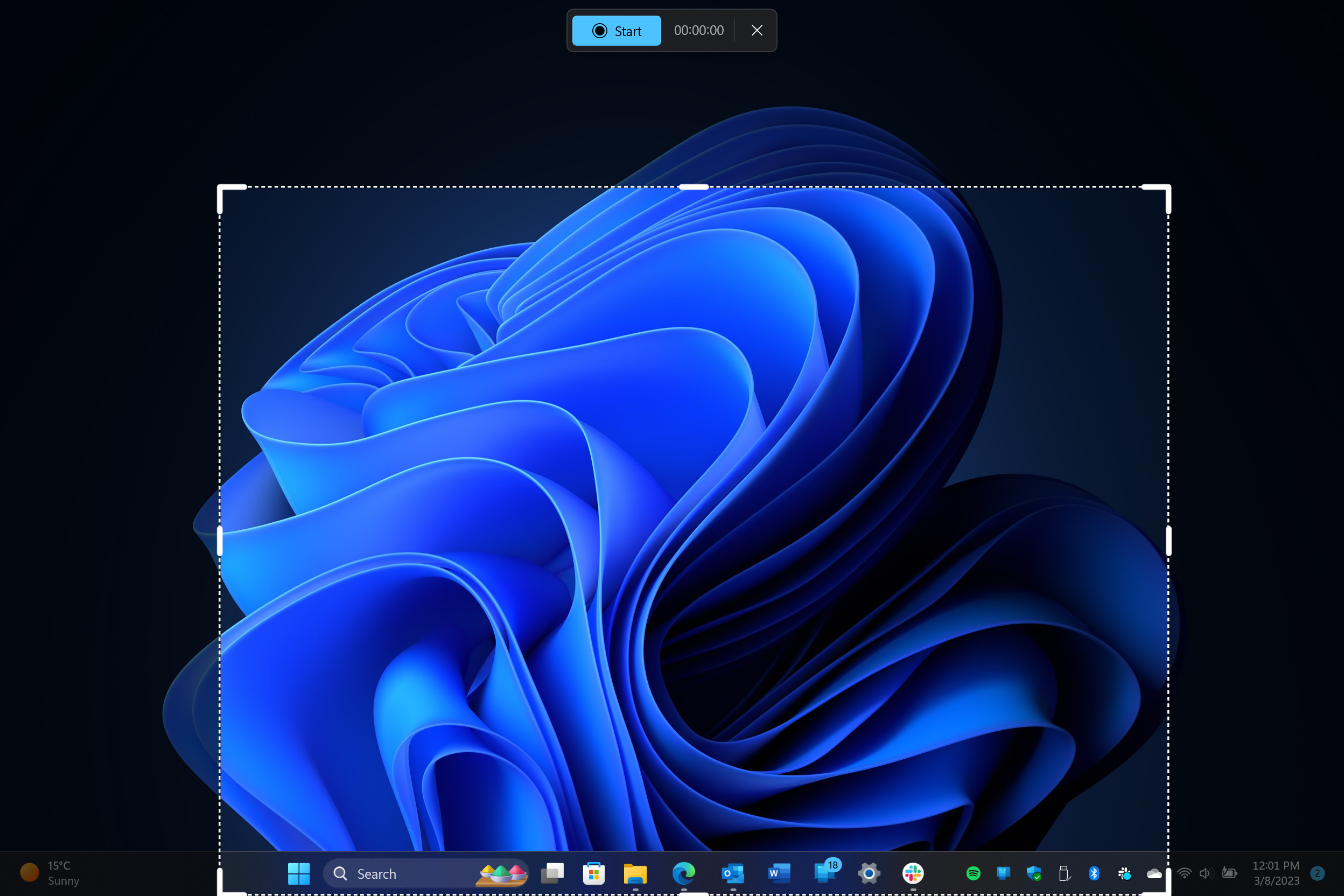
    The Snipping Tool now also includes screen recording capabilities. Click the video camera icon, select New, and draw a box around the area you want to record. You can also choose to record audio. Press Start to begin the recording. When finished, you can save the video or edit it using Windows 11’s Clipchamp video editor.

    Quick Capture with Shortcuts

    Speed up your workflow by using the Windows+Shift+S shortcut to access a minimal capture menu directly, allowing you to start screen captures or recordings without fully opening the Snipping Tool.

    Customizing the Print Screen Key

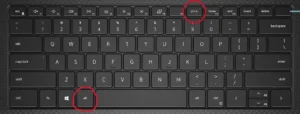
    You can also set the Print Screen (PrintScr) key to launch the Snipping Tool instantly. Go to the app’s Preferences, then Tools > Keyboard, and toggle the option to use PrintScrn for screen captures.

    Saving Screenshots Instantly

    For an even faster screenshot, press Windows+PrintScrn. This captures the entire screen and saves it automatically to your Pictures > Screenshots folder.

    Personalize Your Settings

    Windows 11’s Snipping Tool has a dedicated settings menu where you can tweak various options. Click the three dots in the top-right corner and select Preferences to adjust how screenshots are saved, add borders, and more.

    Post Views: 283
    Share. Facebook Twitter Pinterest LinkedIn Tumblr Email
    ayaksız
    • Website

    Related Posts

    Windows 11 April update breaks some third-party backup apps

    Mayıs 1, 2026

    Windows 11 fixes two major design complaints, including taskbar limits

    Nisan 8, 2026

    Windows 11 finally overtakes as the dominant PC OS

    Nisan 8, 2026
    Add A Comment

    Comments are closed.

    Editors Picks
    8.5

    Apple Planning Big Mac Redesign and Half-Sized Old Mac

    Ocak 5, 2021

    Autonomous Driving Startup Attracts Chinese Investor

    Ocak 5, 2021

    Onboard Cameras Allow Disabled Quadcopters to Fly

    Ocak 5, 2021
    Top Reviews
    9.1

    Review: T-Mobile Winning 5G Race Around the World

    By sevketayaksiz
    8.9

    Samsung Galaxy S21 Ultra Review: the New King of Android Phones

    By sevketayaksiz
    8.9

    Xiaomi Mi 10: New Variant with Snapdragon 870 Review

    By sevketayaksiz
    Advertisement
    Demo
    Şevket Ayaksız
    Facebook X (Twitter) Instagram YouTube
    • Home
    • Adobe
    • microsoft
    • java
    • Oracle
    • Contact
    © 2026 Theme Designed by Şevket Ayaksız.

    Type above and press Enter to search. Press Esc to cancel.