

Close Menu
Şevket Ayaksız

    Subscribe to Updates

    Get the latest creative news from FooBar about art, design and business.

    What's Hot

    Eero Signal Ensures Continuous Business Connectivity Even During Internet Outages

    Mayıs 1, 2026

    7 Simple but Surprising Ways to Boost Your TV’s Sound Quality at Home

    Mayıs 1, 2026

    From AI Pilots to Enterprise Value: Building the Superhighway

    Mayıs 1, 2026
    Facebook X (Twitter) Instagram
    • software
    • Gadgets
    Facebook X (Twitter) Instagram
    Şevket AyaksızŞevket Ayaksız
    Subscribe
    • Home
    • Technology

      7 Simple but Surprising Ways to Boost Your TV’s Sound Quality at Home

      Mayıs 1, 2026

      From AI Pilots to Enterprise Value: Building the Superhighway

      Mayıs 1, 2026

      How I Fixed My Home Wi-Fi Dead Zones: 6 Practical Solutions That Made a Real Difference

      Mayıs 1, 2026

      Why I Switched From iPhone Hotspot to a 5G Travel Router for Good

      Nisan 18, 2026

      Verizon Offers Free iPad or Apple Watch With New iPhone Purchase: Here’s How It Works

      Nisan 18, 2026
    • Adobe
    • Microsoft
    • java
    • Oracle
    Şevket Ayaksız
    Anasayfa » Never Miss a Startup Change: Simple Trick Alerts You to New Apps in Windows 11
    software

    Never Miss a Startup Change: Simple Trick Alerts You to New Apps in Windows 11

    By ayaksızTemmuz 2, 2024Yorum yapılmamış2 Mins Read
    Facebook Twitter Pinterest LinkedIn Tumblr Email
    Share
    Facebook Twitter LinkedIn Pinterest Email

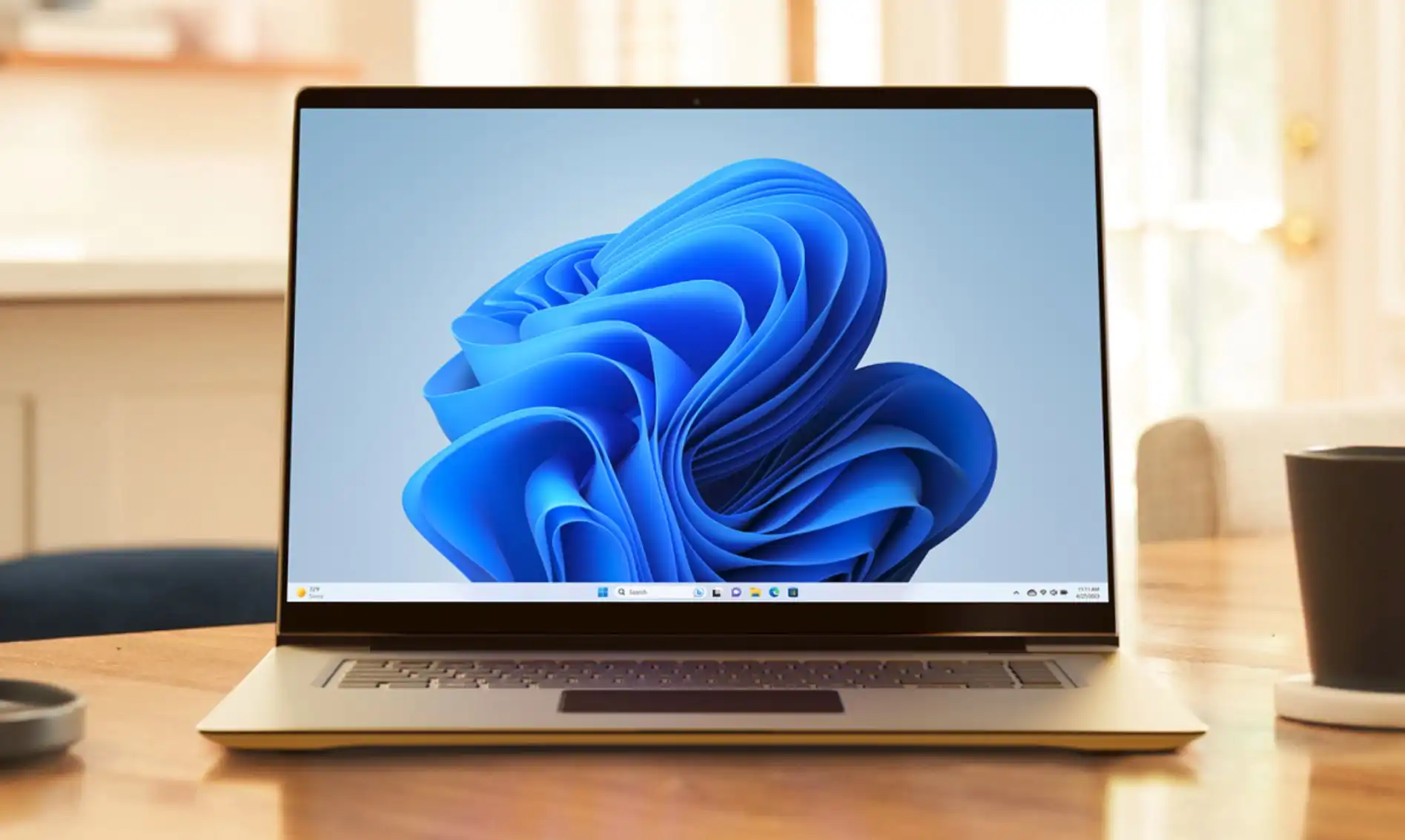
    Optimizing the startup experience in Windows 11 involves managing which apps launch automatically when you boot your PC. The Startup page in Windows 11 Settings provides a convenient way to toggle these settings, but adding too many apps can prolong the startup time significantly.

    To ensure you’re always informed about changes to your startup configuration, you can enable notifications that alert you whenever a new app is added to Startup. This proactive approach allows you to promptly review and manage startup apps, maintaining optimal system performance.

    Here’s how to activate this feature: Go to Windows 11 Settings, select System, then click on Notifications. Scroll down to find “Startup App Notification” and turn it on. Customize the notification settings as desired, including sound preferences and visual appearance.

    Please note that notifications must be enabled globally for this feature to function. If notifications are disabled or you’re in Do Not Disturb mode, you won’t receive alerts for new startup apps.

    For additional control over startup apps, use Task Manager by pressing Ctrl + Shift + Esc. Navigate to the “Startup apps” tab to view and manage each app’s impact on system startup. Disable unnecessary apps to streamline your PC’s boot process and enhance overall performance.

    Post Views: 254
    Share. Facebook Twitter Pinterest LinkedIn Tumblr Email
    ayaksız
    • Website

    Related Posts

    Anthropic’s Claude Security Tool Analyzes Codebases to Detect Vulnerabilities and Prioritize Fixes

    Mayıs 1, 2026

    Microsoft’s Windows Insider Program Finally Becomes More Streamlined and User-Friendly

    Nisan 11, 2026

    Microsoft launches tool to gather user feedback on Windows issues

    Nisan 8, 2026
    Add A Comment

    Comments are closed.

    Editors Picks
    8.5

    Apple Planning Big Mac Redesign and Half-Sized Old Mac

    Ocak 5, 2021

    Autonomous Driving Startup Attracts Chinese Investor

    Ocak 5, 2021

    Onboard Cameras Allow Disabled Quadcopters to Fly

    Ocak 5, 2021
    Top Reviews
    9.1

    Review: T-Mobile Winning 5G Race Around the World

    By sevketayaksiz
    8.9

    Samsung Galaxy S21 Ultra Review: the New King of Android Phones

    By sevketayaksiz
    8.9

    Xiaomi Mi 10: New Variant with Snapdragon 870 Review

    By sevketayaksiz
    Advertisement
    Demo
    Şevket Ayaksız
    Facebook X (Twitter) Instagram YouTube
    • Home
    • Adobe
    • microsoft
    • java
    • Oracle
    • Contact
    © 2026 Theme Designed by Şevket Ayaksız.

    Type above and press Enter to search. Press Esc to cancel.