

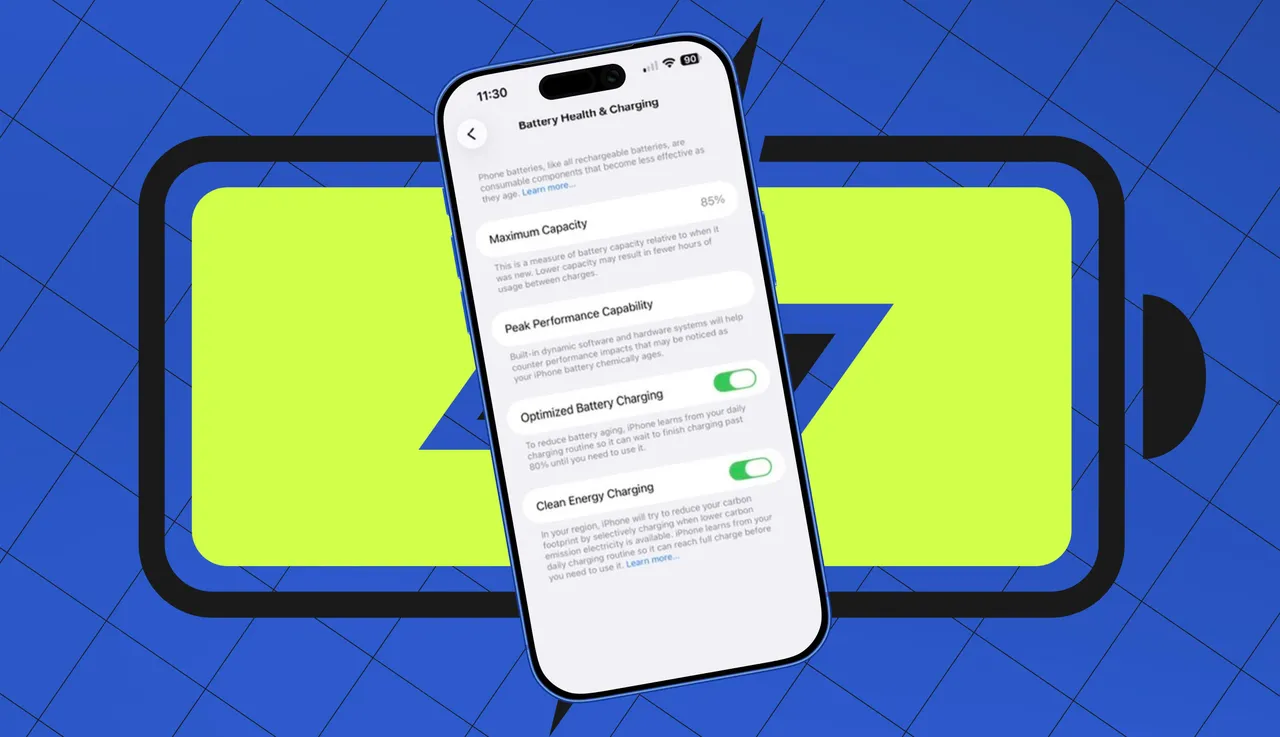

Keeping your iPhone battery in top shape starts with one simple step: updating to the latest iOS. Apple frequently rolls out software updates that not only introduce new features but also optimize power management and fix bugs that can drain your battery. Updates can improve everything from CPU performance to network efficiency, meaning skipping them could actually worsen battery life. To update, go to Settings > General > Software Update, then tap Download and Install if an update is available. For convenience, you can also enable Automatic Updates so your iPhone installs the latest iOS whenever it’s charging, locked, and connected to Wi-Fi.
Another major factor affecting battery life is screen brightness. The display is consistently one of the biggest power consumers on any iPhone. Even reducing brightness by just 10–20% can lead to noticeable improvements in battery endurance. You can adjust brightness quickly by swiping down from the top-right corner to open Control Center and dragging the Brightness slider to a comfortable level.
For hands-free adjustment, enable Auto-Brightness. This feature automatically adapts your screen’s brightness based on ambient lighting, reducing unnecessary power usage. To turn it on, go to Settings > Accessibility > Display & Text Size, then toggle Auto-Brightness. Combining manual dimming with Auto-Brightness can give your battery a significant boost throughout the day.
By regularly updating iOS and managing screen brightness, you can address two of the most common factors that sap battery life. These tweaks are simple but highly effective, helping your iPhone last longer between charges and keeping performance smooth. Small changes like these often make the biggest difference in real-world battery performance.