


Close Menu
Şevket Ayaksız

    Subscribe to Updates

    Get the latest creative news from FooBar about art, design and business.

    What's Hot

    Why I Switched From iPhone Hotspot to a 5G Travel Router for Good

    Nisan 18, 2026

    Apple AirTags Revisited After 5 Years: How They Stack Up Today

    Nisan 18, 2026

    Verizon Offers Free iPad or Apple Watch With New iPhone Purchase: Here’s How It Works

    Nisan 18, 2026
    Facebook X (Twitter) Instagram
    • software
    • Gadgets
    Facebook X (Twitter) Instagram
    Şevket AyaksızŞevket Ayaksız
    Subscribe
    • Home
    • Technology

      Why I Switched From iPhone Hotspot to a 5G Travel Router for Good

      Nisan 18, 2026

      Verizon Offers Free iPad or Apple Watch With New iPhone Purchase: Here’s How It Works

      Nisan 18, 2026

      How to Use AI Safely at Work: 4 Practical Tips

      Nisan 18, 2026

      Turn an Old Tablet into a Smart Home Control Hub

      Nisan 18, 2026

      Gemini Mac App Tested: Key Edge Over Web Version

      Nisan 18, 2026
    • Adobe
    • Microsoft
    • java
    • Oracle
    Şevket Ayaksız
    Anasayfa » Solving the Puzzle: Diagnosing and Repairing Charging Problems on Your Windows 11 Laptop
    Tech

    Solving the Puzzle: Diagnosing and Repairing Charging Problems on Your Windows 11 Laptop

    By ayaksızŞubat 8, 2024Yorum yapılmamış2 Mins Read
    Facebook Twitter Pinterest LinkedIn Tumblr Email
    Share
    Facebook Twitter LinkedIn Pinterest Email

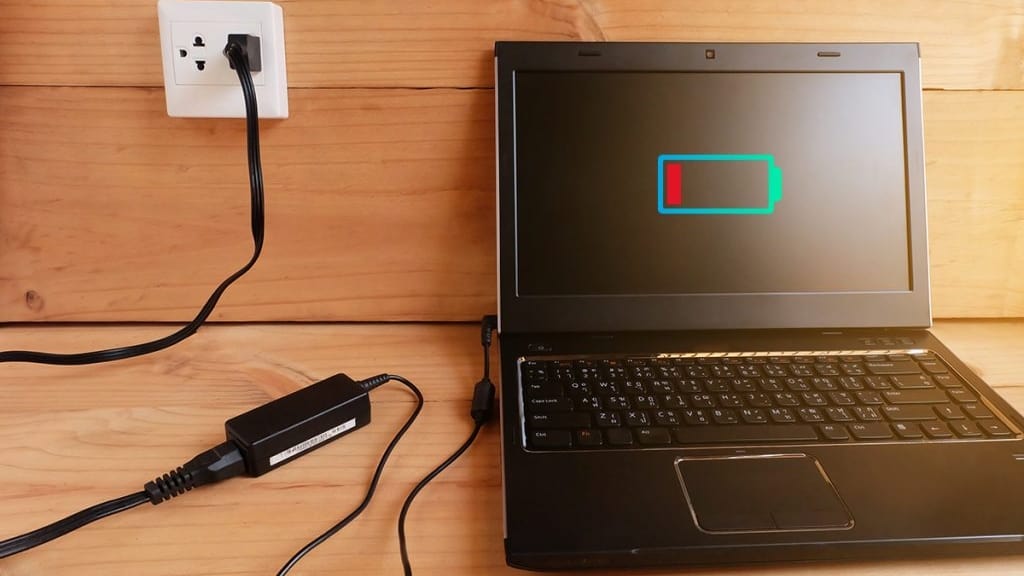
    Maintaining your laptop’s ability to charge after Windows updates is essential for uninterrupted usage. However, it’s not uncommon for issues to arise post-update. If your laptop’s battery stops charging despite being plugged in, there’s a simple fix that may help alleviate the problem.

    To begin, access the Device Manager by searching for it or right-clicking the Start button and selecting Device Manager. Expand the “Batteries” section, where you’ll find “Microsoft AC Adapter” and “Microsoft ACPI-Compliant Control Method Battery.” Right-click on each item and select “Uninstall device.” Although this removes the battery drivers, they will automatically reinstall upon restarting your laptop.

    Next, shut down your laptop and unplug the power cable. If possible, remove the battery, ensuring it’s properly reconnected upon reinsertion. After reconnecting the battery (if removable), plug in your laptop and power it on. Check the battery icon in the system tray to confirm that your laptop is now charging.

    While this method resolved my laptop’s charging issue, it’s essential to note that outcomes may vary depending on your laptop’s make and model. If the problem persists, consider alternative solutions such as updating Windows or restoring to a previous state.

    To update Windows, navigate to Settings, select Windows Update, and click “Check for updates.” Alternatively, you can attempt to restore Windows 11 to a point before the charging issue occurred. This option requires the presence of restore points created through System Protection. Access the Control Panel, search for “Recovery,” and select “Open System Restore.” Follow the prompts to choose a suitable restore point.

    Post Views: 232
    Share. Facebook Twitter Pinterest LinkedIn Tumblr Email
    ayaksız
    • Website

    Related Posts

    Why I Switched From iPhone Hotspot to a 5G Travel Router for Good

    Nisan 18, 2026

    Verizon Offers Free iPad or Apple Watch With New iPhone Purchase: Here’s How It Works

    Nisan 18, 2026

    How to Use AI Safely at Work: 4 Practical Tips

    Nisan 18, 2026
    Add A Comment

    Comments are closed.

    Editors Picks
    8.5

    Apple Planning Big Mac Redesign and Half-Sized Old Mac

    Ocak 5, 2021

    Autonomous Driving Startup Attracts Chinese Investor

    Ocak 5, 2021

    Onboard Cameras Allow Disabled Quadcopters to Fly

    Ocak 5, 2021
    Top Reviews
    9.1

    Review: T-Mobile Winning 5G Race Around the World

    By sevketayaksiz
    8.9

    Samsung Galaxy S21 Ultra Review: the New King of Android Phones

    By sevketayaksiz
    8.9

    Xiaomi Mi 10: New Variant with Snapdragon 870 Review

    By sevketayaksiz
    Advertisement
    Demo
    Şevket Ayaksız
    Facebook X (Twitter) Instagram YouTube
    • Home
    • Adobe
    • microsoft
    • java
    • Oracle
    • Contact
    © 2026 Theme Designed by Şevket Ayaksız.

    Type above and press Enter to search. Press Esc to cancel.