


Leverage the Python Extension in Visual Studio Code for Streamlined Project Management and Testing
Microsoft Visual Studio Code (VS Code) has rapidly risen in popularity as a versatile, cross-platform code editor that can be customized into a robust integrated development environment (IDE) for a wide range of programming languages and workflows. Among its many uses, VS Code has become particularly renowned for its support of Python development, largely due to the powerful Python extension provided by Microsoft. This extension not only enhances the editor with essential Python-specific features like syntax highlighting but also includes linting tools, environment management capabilities, and much more, tailored specifically for the Python language.
To begin utilizing VS Code for Python development, the first step is to install and set up Visual Studio Code itself. If you’re new to VS Code, a good starting point is to refer to guides on setting up the editor, such as those available on InfoWorld. Once VS Code is installed, you should also ensure that you have a working installation of Python on your system. Familiarity with Python, including the use of virtual environments, will be crucial as you proceed. If you’re using the Anaconda distribution of Python, you can seamlessly integrate it with VS Code to manage your Python projects effectively.
The core of Python development within VS Code hinges on the Python extension provided by Microsoft. This extension is essential as it introduces key functionalities such as syntax highlighting, debugging tools, code navigation, and refactoring capabilities. These features collectively enhance the coding experience, making it easier to write, debug, and manage Python code. However, it’s important to note that while the Python extension covers many crucial aspects, it does not include linting, IntelliSense completion, or type checking.
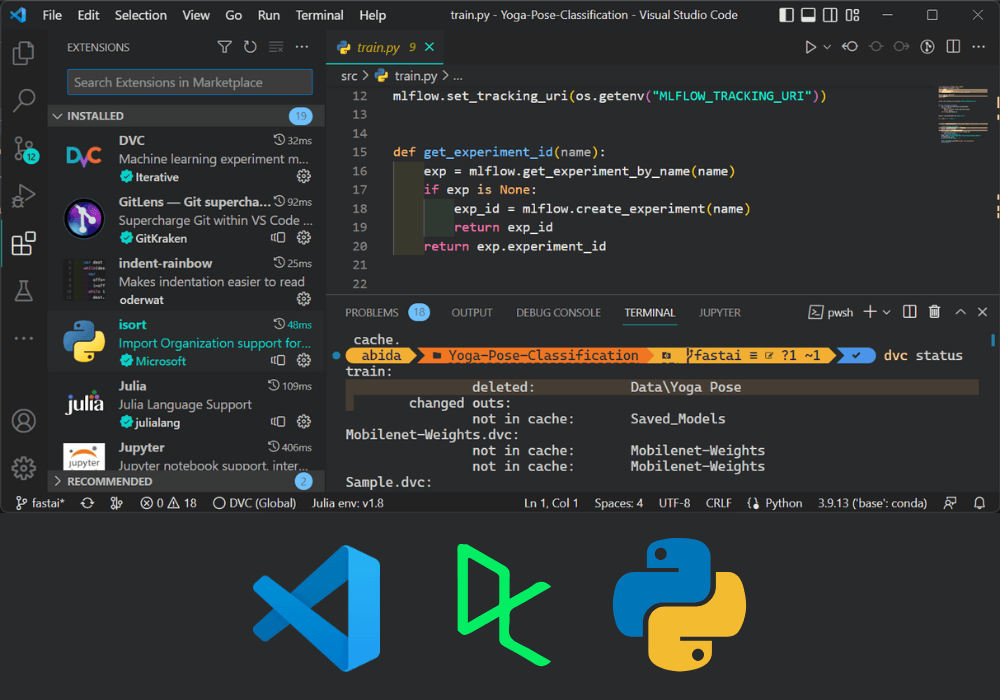
For these additional functionalities, you will need to use another extension called Pylance, which is automatically installed alongside the Python extension. Pylance provides advanced features such as linting, IntelliSense, and type checking, further enriching the Python development experience. Although Pylance and the Python extension are developed separately, their integration provides a comprehensive set of tools that work together seamlessly to support various aspects of Python development.
Once the necessary extensions are installed, you can begin creating and managing Python projects in VS Code. The Python extension facilitates project setup, environment management, and running tests. It supports a range of workflows, from initializing new projects to working with existing codebases. The extension also integrates with various Python tools and frameworks, allowing you to leverage VS Code’s capabilities to their fullest.
In summary, Visual Studio Code, combined with the Python extension and Pylance, offers a powerful and flexible environment for Python development. By following the installation and setup steps outlined above, you can harness these tools to streamline your development workflow, enhance productivity, and manage your Python projects with greater efficiency.