

Close Menu
Şevket Ayaksız

    Subscribe to Updates

    Get the latest creative news from FooBar about art, design and business.

    What's Hot

    Microsoft confirms Secure Boot certificate update issues on some PCs

    Temmuz 14, 2026

    Copilot can now explain why your PC feels slow

    Temmuz 14, 2026

    Windows 10 ESU confirmation emails may be hiding in Outlook

    Temmuz 14, 2026
    Facebook X (Twitter) Instagram
    • software
    • Gadgets
    Facebook X (Twitter) Instagram
    Şevket AyaksızŞevket Ayaksız
    Subscribe
    • Home
    • Technology

      Innocn’s 49-inch ultrawide monitor hits a record-low $500 for Prime Day

      Temmuz 12, 2026

      Sony 1000X The Collexion vs. Bowers & Wilkins Px8 S2: Which Premium Headphones Come Out on Top?

      Temmuz 11, 2026

      SpaceX Eyes Massive Starlink Expansion With Plans for 100,000 Additional Satellites

      Temmuz 11, 2026

      Nvidia celebrates 30 years of GPUs with free GeForce trading cards

      Temmuz 10, 2026

      Acer’s 7-in-1 wireless charging station drops to $50

      Temmuz 9, 2026
    • Adobe
    • Microsoft
    • java
    • Oracle
    Şevket Ayaksız
    Anasayfa » Windows 11 Snipping Tool Now Smarter with Table Data Copying
    Windows

    Windows 11 Snipping Tool Now Smarter with Table Data Copying

    By ayaksızEkim 13, 2024Yorum yapılmamış2 Mins Read
    Facebook Twitter Pinterest LinkedIn Tumblr Email
    Share
    Facebook Twitter LinkedIn Pinterest Email

    Microsoft’s Snipping Tool has gained even more functionality, now allowing users to copy table-formatted data directly to a spreadsheet, alongside its existing ability to capture both screenshots and screen recordings. This new feature preserves the structure of rows and columns, ensuring that the copied content remains organized when pasted into a spreadsheet.

    This update is part of Snipping Tool version 11.2409.22.0, which accompanies the release of Windows 11 Insider Preview Build 26120.2122 in the Dev Channel. While this build is experimental, meaning the feature isn’t guaranteed to reach official releases, it offers a sneak peek at what might be coming soon.

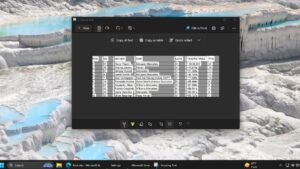
    To use this new function, users simply need to capture a screenshot containing table data, select ‘Text actions,’ and then click ‘Copy as table.’ This structured data can be pasted into a spreadsheet, maintaining the integrity of its format. It’s important to note, though, that the feature works best when only one table is present in the screenshot.

    This new table-copying functionality is a step beyond the usual Copy and Paste shortcuts (CTRL+C and CTRL+V), which remain available for general use. However, this feature shines when dealing with complex data formats, making Snipping Tool a more robust option for users who work with tables. Plus, it joins Snipping Tool’s already handy screen recording feature, adding more versatility to the app’s capabilities.

    Post Views: 292
    Share. Facebook Twitter Pinterest LinkedIn Tumblr Email
    ayaksız
    • Website

    Related Posts

    Windows 10 ESU confirmation emails may be hiding in Outlook

    Temmuz 14, 2026

    Mysterious blank white window appears on some Windows PCs

    Temmuz 12, 2026

    No Windows 12 at Build 2026, but Microsoft has other plans

    Haziran 2, 2026
    Add A Comment

    Comments are closed.

    Editors Picks
    8.5

    Apple Planning Big Mac Redesign and Half-Sized Old Mac

    Ocak 5, 2021

    Autonomous Driving Startup Attracts Chinese Investor

    Ocak 5, 2021

    Onboard Cameras Allow Disabled Quadcopters to Fly

    Ocak 5, 2021
    Top Reviews
    9.1

    Review: T-Mobile Winning 5G Race Around the World

    By sevketayaksiz
    8.9

    Samsung Galaxy S21 Ultra Review: the New King of Android Phones

    By sevketayaksiz
    8.9

    Xiaomi Mi 10: New Variant with Snapdragon 870 Review

    By sevketayaksiz
    Advertisement
    Demo
    Şevket Ayaksız
    Facebook X (Twitter) Instagram YouTube
    • Home
    • Adobe
    • microsoft
    • java
    • Oracle
    • Contact
    © 2026 Theme Designed by Şevket Ayaksız.

    Type above and press Enter to search. Press Esc to cancel.