


Close Menu
Şevket Ayaksız
    What's Hot

    AI watermarks could improve transparency but won’t stop AI slop

    Eylül 13, 2026

    LG’s 4K OLED gaming monitor gets a $600 discount

    Eylül 13, 2026

    Keychron’s 100-key macropad offers 8,000Hz polling for $65

    Eylül 13, 2026
    • software
    • Gadgets
    Şevket AyaksızŞevket Ayaksız
    • Home
    • Technology

      Apple: iPhone 17 and Older Models Hit With Unexpected $100 Price Increase

      Eylül 10, 2026

      Apple Watch Intelligence Could Be a Major Accessibility Breakthrough

      Eylül 10, 2026

      Apple May Skip the Base iPhone 18 This Year

      Eylül 10, 2026

      FCC changes robot vacuum rules, potentially affecting future models

      Ağustos 8, 2026

      Samsung’s new 2TB 990 SSD drops to its lowest price yet

      Ağustos 6, 2026
    • Adobe

      Adobe brings four key creative apps to Windows on Arm beta

      Ağustos 1, 2025

      Skip the Legal Jargon—Adobe Acrobat’s AI Reads Contracts for You

      Şubat 5, 2025

      Save 50% on a Top-Rated Adobe Alternative This Black Friday

      Kasım 30, 2024

      Save 50% on Adobe’s Creative Cloud This Black Friday

      Kasım 25, 2024

      Adobe Brings Generative AI to Premiere Pro for Smarter Video Editing

      Ekim 24, 2024
    • Microsoft

      Microsoft quietly removes Windows 11’s 32GB RAM recommendation

      Ağustos 6, 2026

      Microsoft aims to improve Windows 11 performance on 8GB PCs

      Ağustos 2, 2026

      Microsoft PowerToys remains an essential Windows utility

      Temmuz 31, 2026

      Microsoft says Windows Secure Boot certificate rollout is still in progress

      Temmuz 30, 2026

      Microsoft tests Windows Update changes after major outage

      Temmuz 29, 2026
    • java

      Optimizing Java Streams for High-Performance Applications

      Aralık 20, 2025

      AI Brings a New Spark to JavaScript Programming

      Kasım 9, 2025

      Revisiting the Spring Framework: What’s New and Why It Still Matters

      Kasım 9, 2025

      Top Highlights and Features to Watch in Java 25

      Kasım 3, 2025

      Mastering Java Cold Starts: Achieving High-Performance Serverless with GraalVM and Spring

      Kasım 3, 2025
    • Oracle

      JavaScript Community Pushes Back Against Oracle’s Trademark Claim

      Şubat 8, 2025

      Understanding the Impact of the Google vs. Oracle Decision

      Aralık 25, 2024

      Google Wins Legal Battle Over Java, Oracle Continues to Resist

      Aralık 25, 2024

      Oracle Unveils Verrazzano: A New Container Platform for Kubernetes

      Aralık 12, 2024

      Oracle vs. Google: Implications of the Verdict on Open Source Software

      Aralık 8, 2024
    Şevket Ayaksız
    Anasayfa » Mastering Controller Setup: Play Your Steam Games with Ease
    Insights

    Mastering Controller Setup: Play Your Steam Games with Ease

    By ayaksızEkim 4, 2024Yorum yapılmamış2 Mins Read
    Facebook Twitter Pinterest LinkedIn Tumblr Email
    Share
    Facebook Twitter LinkedIn Pinterest Email

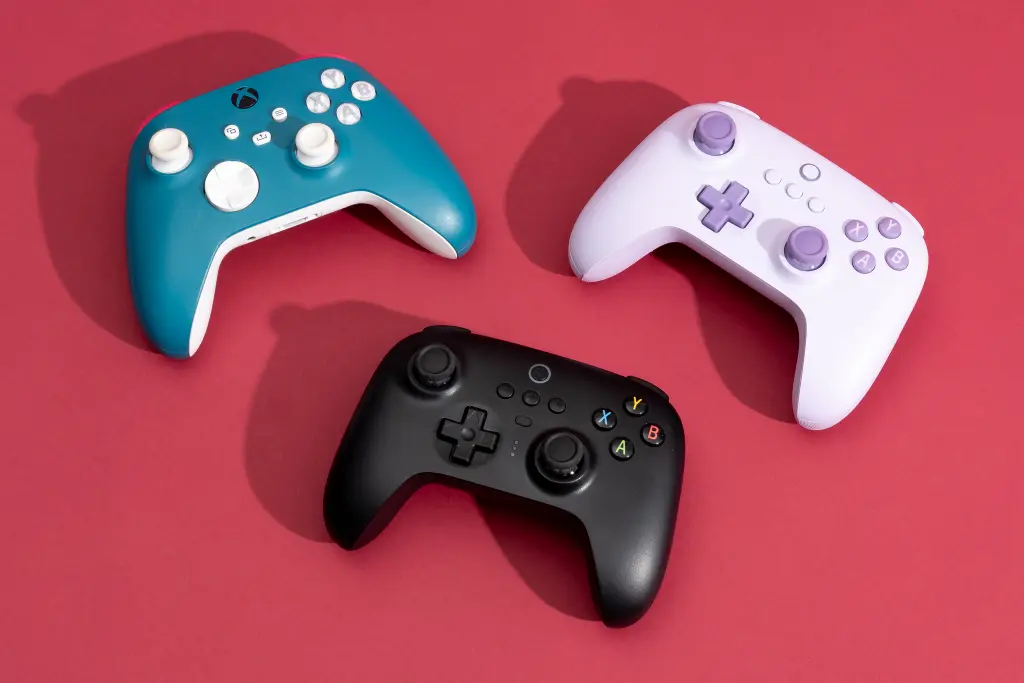
    I have to admit that I don’t usually reach for a controller when gaming on my PC; approximately 98% of my gaming is done with a keyboard and mouse because they offer unparalleled accuracy, especially for aiming. Nevertheless, there are times when I enjoy using a controller—particularly when I’m relaxing on my couch playing platformers on my 65-inch TV. It’s hard to argue against the comfort of a console-like experience on a gaming PC.

    In my experience, I’ve sometimes faced issues with controllers that didn’t work seamlessly right away. The key to resolving these problems has been to set them up correctly in Steam before I start gaming. Here’s a guide on how to get your controller ready to use:

    Setting Up Your Controller in Steam

    1. Open Steam and click on Settings in the upper left corner of the window.
    2. Scroll down and select Controller.
    3. Under External Gamepad Settings, tick the box that corresponds to your controller. For instance, if you have an Xbox controller, check the box for Enable Steam Input for Xbox Controllers. If you’re using a generic controller, select Enable Steam Input for Generic Controllers.

    Once you’ve done that, exit the settings and go to your Library from the top menu.

    1. Find the game you want to play with your controller, right-click on it, and select Properties.
    2. On the left side, choose Controllers. You’ll see options like Use Default Settings or Disable Steam Input. Switch this to Enable Steam Input.
    3. To finalize the process, restart your PC to ensure the settings take effect.

    That’s it! Your controller should now be operational for the Steam game you configured it for. Feel free to repeat this setup for any additional games you wish to play with your controller!

    Post Views: 388
    Share. Facebook Twitter Pinterest LinkedIn Tumblr Email
    ayaksız
    • Website

    Related Posts

    GTA VI’s next reveal will be a Netflix exclusive

    Ağustos 8, 2026

    TP-Link’s 3-pack mesh Wi-Fi system drops below $100

    Ağustos 4, 2026

    Amazon to issue tariff refunds to eligible customers

    Ağustos 3, 2026
    Add A Comment

    Comments are closed.

    Editors Picks
    8.5

    Apple Planning Big Mac Redesign and Half-Sized Old Mac

    Ocak 5, 2021

    Autonomous Driving Startup Attracts Chinese Investor

    Ocak 5, 2021

    Onboard Cameras Allow Disabled Quadcopters to Fly

    Ocak 5, 2021
    Top Reviews
    9.1

    Review: T-Mobile Winning 5G Race Around the World

    By sevketayaksiz
    8.9

    Samsung Galaxy S21 Ultra Review: the New King of Android Phones

    By sevketayaksiz
    8.9

    Xiaomi Mi 10: New Variant with Snapdragon 870 Review

    By sevketayaksiz
    Advertisement
    Demo
    Şevket Ayaksız
    Instagram
    • Home
    • Adobe
    • microsoft
    • java
    • Oracle
    • Contact
    © 2026 Theme Designed by Şevket Ayaksız.

    Type above and press Enter to search. Press Esc to cancel.