

Close Menu
Şevket Ayaksız

    Subscribe to Updates

    Get the latest creative news from FooBar about art, design and business.

    What's Hot

    Why I Switched From iPhone Hotspot to a 5G Travel Router for Good

    Nisan 18, 2026

    Apple AirTags Revisited After 5 Years: How They Stack Up Today

    Nisan 18, 2026

    Verizon Offers Free iPad or Apple Watch With New iPhone Purchase: Here’s How It Works

    Nisan 18, 2026
    Facebook X (Twitter) Instagram
    • software
    • Gadgets
    Facebook X (Twitter) Instagram
    Şevket AyaksızŞevket Ayaksız
    Subscribe
    • Home
    • Technology

      Why I Switched From iPhone Hotspot to a 5G Travel Router for Good

      Nisan 18, 2026

      Verizon Offers Free iPad or Apple Watch With New iPhone Purchase: Here’s How It Works

      Nisan 18, 2026

      How to Use AI Safely at Work: 4 Practical Tips

      Nisan 18, 2026

      Turn an Old Tablet into a Smart Home Control Hub

      Nisan 18, 2026

      Gemini Mac App Tested: Key Edge Over Web Version

      Nisan 18, 2026
    • Adobe
    • Microsoft
    • java
    • Oracle
    Şevket Ayaksız
    Anasayfa » iOS 17: Change Your iPhone’s Default Alert Tone With These 3 Easy Steps
    software

    iOS 17: Change Your iPhone’s Default Alert Tone With These 3 Easy Steps

    By ayaksızMart 2, 2024Yorum yapılmamış2 Mins Read
    Facebook Twitter Pinterest LinkedIn Tumblr Email
    Share
    Facebook Twitter LinkedIn Pinterest Email

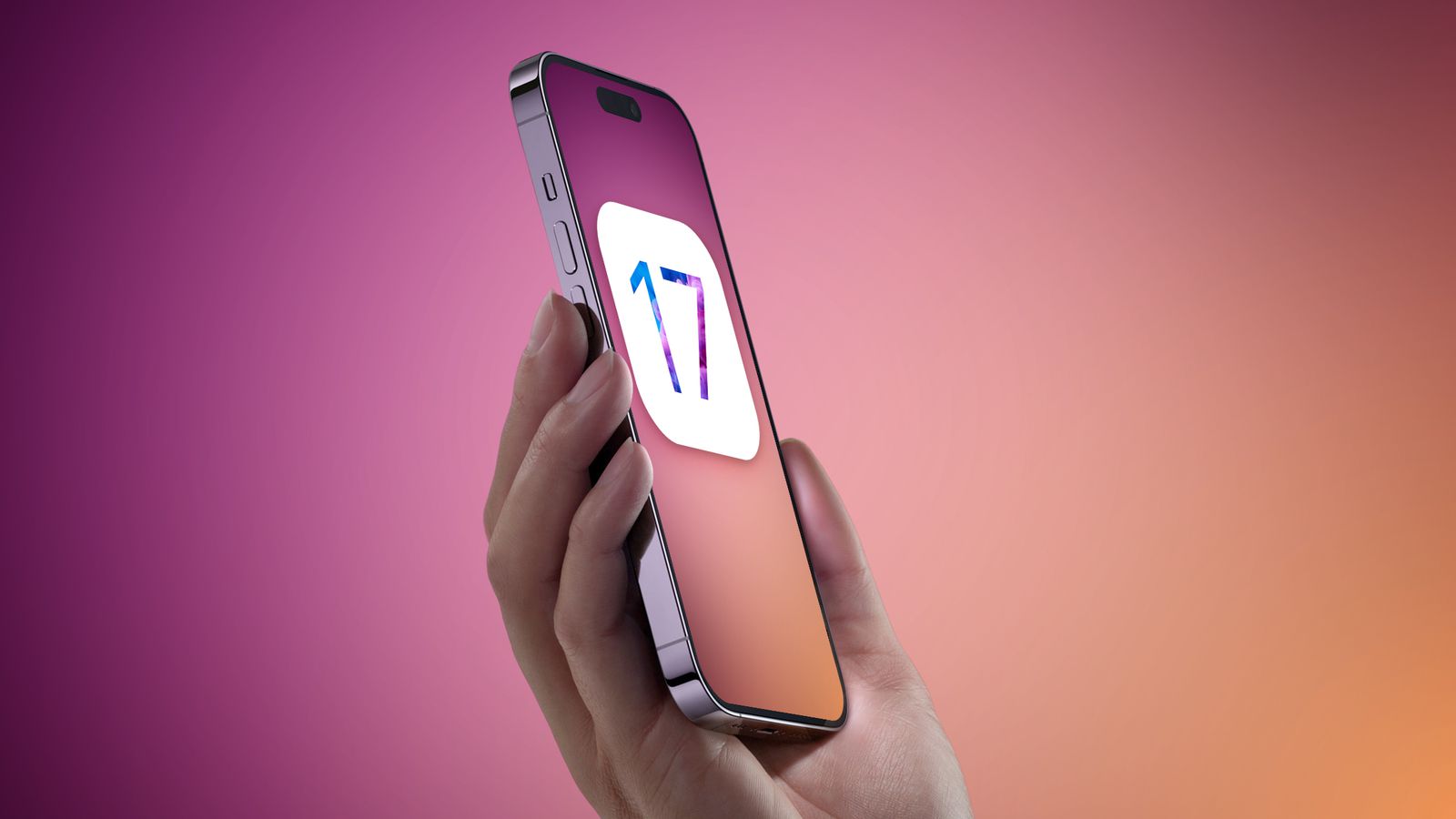
    With the release of iOS 17 in September, Apple introduced a host of new features like StandBy mode and enhancements to iMessage. However, it wasn’t until the rollout of iOS 17.2 in December that users gained access to coveted additions such as the Journal app. Among the less-publicized features of the iOS 17 update was the newfound ability to modify your iPhone’s default notification alert tone.

    Following the launch of iOS 17, some iPhone users expressed dissatisfaction online over Apple’s alteration of the default alert tone. Concerns ranged from the new tone’s inadequacy in waking users up during security alerts to disruptions in established caregiving routines for elderly relatives. With the release of iOS 17.2, users now have the option to tailor their default tone to better align with their preferences.

    Here’s a step-by-step guide to changing your iPhone’s default notification tone:

    Simple Steps to Customize Your Default Alert Tone

    1. Open Settings.
    2. Tap Sounds & Haptics.
    3. Select Default Alerts.

    Within this menu, you’ll have the opportunity to audition and select from a variety of familiar alert sounds, such as Tri-tone, or rediscover older tones like Bell by choosing “Classic” at the bottom. Alternatively, you can opt for “None” to silence your alert tone while retaining the haptic alert (vibration pattern) feature.

    Additionally, you can customize your haptic alerts:

    How to Personalize Your Haptic Alert Tone

    1. Open Settings.
    2. Tap Sounds & Haptics.
    3. Select Default Alerts.
    4. Tap Haptics.

    Within this section, you can choose from an array of vibration patterns, including “Accent” for a brief, single vibration or “SOS,” which vibrates SOS in Morse code. Opting for “Synchronized” ensures seamless coordination between your haptics and alert tone.

    For those seeking further customization, you can create a custom vibration pattern:

    Crafting a Unique Vibration Pattern

    1. Open Settings.
    2. Tap Sounds & Haptics.
    3. Select Default Alerts.
    4. Tap Haptics.
    5. Tap “Create New Vibration.”

    On the subsequent screen, tap to generate a brief vibration pattern or press and hold for a longer, singular vibration. Once satisfied, tap “Save,” assign a name to your pattern, and it will automatically become your default alert haptic.

    Post Views: 273
    Share. Facebook Twitter Pinterest LinkedIn Tumblr Email
    ayaksız
    • Website

    Related Posts

    Microsoft’s Windows Insider Program Finally Becomes More Streamlined and User-Friendly

    Nisan 11, 2026

    Microsoft launches tool to gather user feedback on Windows issues

    Nisan 8, 2026

    Microsoft outlines major Windows 11 reset focused on performance

    Nisan 8, 2026
    Add A Comment

    Comments are closed.

    Editors Picks
    8.5

    Apple Planning Big Mac Redesign and Half-Sized Old Mac

    Ocak 5, 2021

    Autonomous Driving Startup Attracts Chinese Investor

    Ocak 5, 2021

    Onboard Cameras Allow Disabled Quadcopters to Fly

    Ocak 5, 2021
    Top Reviews
    9.1

    Review: T-Mobile Winning 5G Race Around the World

    By sevketayaksiz
    8.9

    Samsung Galaxy S21 Ultra Review: the New King of Android Phones

    By sevketayaksiz
    8.9

    Xiaomi Mi 10: New Variant with Snapdragon 870 Review

    By sevketayaksiz
    Advertisement
    Demo
    Şevket Ayaksız
    Facebook X (Twitter) Instagram YouTube
    • Home
    • Adobe
    • microsoft
    • java
    • Oracle
    • Contact
    © 2026 Theme Designed by Şevket Ayaksız.

    Type above and press Enter to search. Press Esc to cancel.