

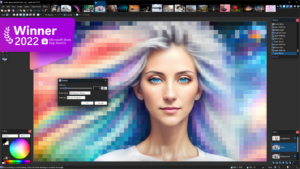
Paint.net, often hailed as a free alternative to Photoshop, packs a lot of punch for a no-cost image editing tool. Developed by dotPDN, this software has become a favorite among users who seek powerful features without the financial commitment. Over the years, Paint.net has grown into a sophisticated platform, offering an array of tools that can cater to both novice and semi-professional editors.
Enhancing Photos Quickly with Auto Mode
Paint.net’s auto mode is one of its most user-friendly features, allowing for quick and effective image enhancements. By optimizing contrast, saturation, and brightness with a single click, this tool helps users improve their photos effortlessly. Accessible through the Corrections menu or with the shortcut Ctrl+Shift+L, auto mode is perfect for those who need to enhance their images without getting bogged down in complex adjustments. It’s an ideal feature for anyone who wants to achieve professional-looking results in minimal time.
Fine-Tuning with the Curves Tool
For those who require more detailed adjustments, Paint.net’s Curves tool offers precise control over image luminosity and brightness. Found in the Corrections menu or via Ctrl+Shift+M, Curves allows users to modify specific areas of an image without affecting the entire photo. This feature is particularly useful for correcting exposure problems or adjusting the tonal range of individual color channels. By manipulating the curve’s line segments, users can make nuanced changes to shadows and highlights, ensuring their edits are both accurate and impactful.
Harnessing the Power of Layers
Layers are a fundamental aspect of image editing, and Paint.net provides a robust set of tools for managing them. The layer window, accessible with F7, enables users to work with multiple layers, each of which can be individually adjusted, moved, or blended. This feature is invaluable for creating complex compositions, applying effects, or isolating specific parts of an image. The ability to add, delete, and adjust layers with transparency effects gives users a high degree of creative control and flexibility.
Straightening Images with Precision
Another notable feature is the Straighten tool, located under Effects > Photos. This tool is designed to correct tilted images, a common issue with handheld photography. By rotating the image and cropping out the resulting empty spaces, the Straighten tool makes it easy to fix crooked photos without extensive manual work. This feature helps maintain the overall composition while ensuring the image is perfectly aligned.
Boosting Productivity with Hotkeys
Paint.net offers a range of hotkeys that streamline the editing process, making it easier and faster to complete tasks. Key shortcuts like Ctrl+C for copy, Ctrl+V for paste, and Ctrl+Z for undo can significantly improve efficiency. Additional shortcuts include Ctrl+N for creating a new image, Ctrl+O for opening files, and Ctrl+S for saving your work. These hotkeys help users navigate the software quickly and perform common actions with ease.
In summary, Paint.net stands out as a powerful and versatile tool for image editing, offering a suite of features that rival those of more expensive software. With capabilities like auto mode, Curves, layer management, and a variety of hotkeys, Paint.net provides users with the tools they need to create professional-quality images without the associated costs. Whether you’re looking to enhance photos quickly or dive into detailed edits, Paint.net delivers exceptional value and functionality.